Player Overview
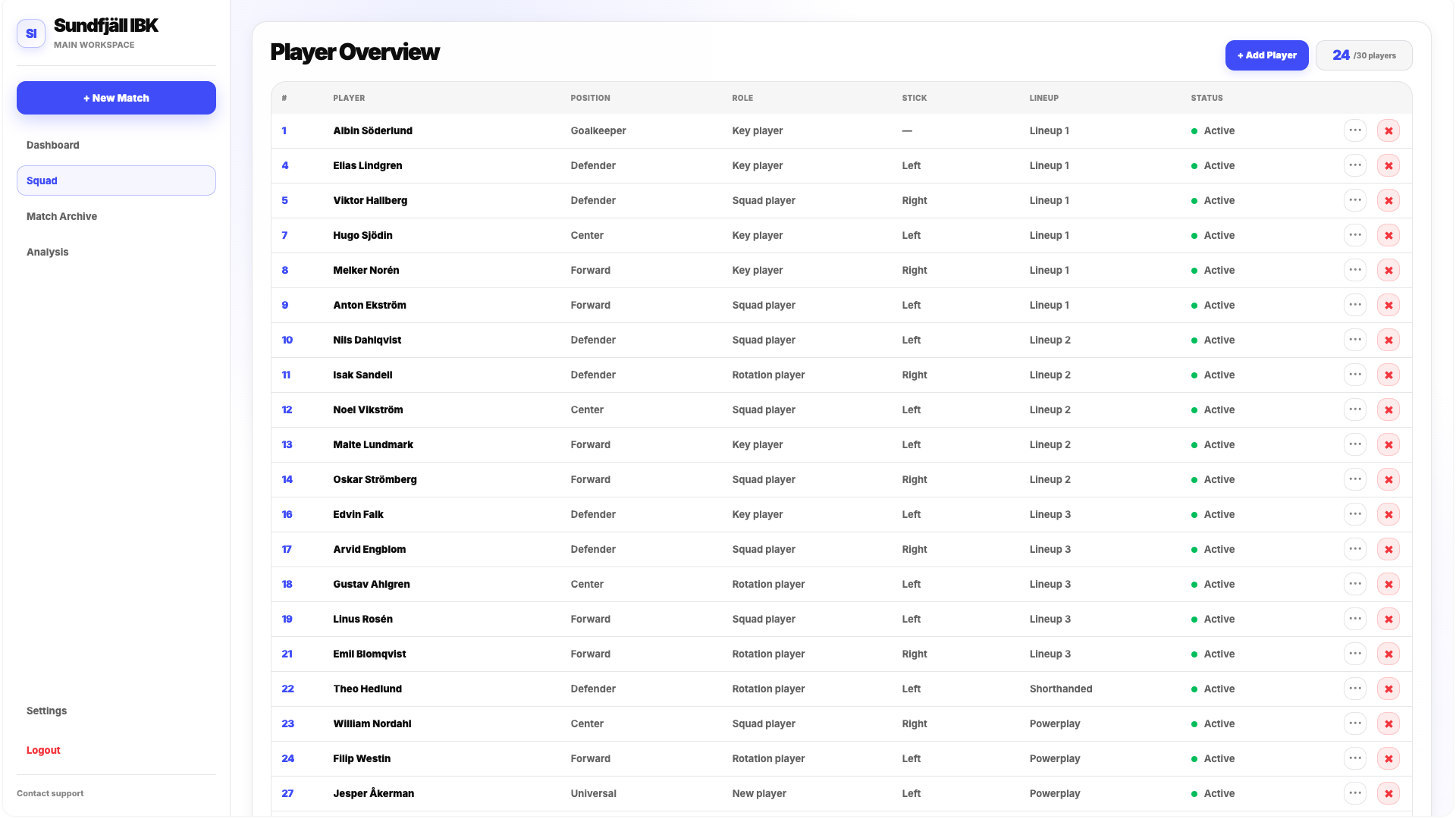
Player Overview contains the complete list of players currently added to your team.
For each player, the table displays key information such as their number, full name, position, role, stick side, primary lineup and current availability status.
Position
A player can be assigned one of the available positions:
- Goalkeeper
- Defender
- Center
- Forward
- Universal
Position describes the player's primary playing position within the team.
Role
Role provides additional context about the player's place in the squad.
Available roles include:
- Backup Player
- Key Player
- New Player
- Rotation Player
- Squad Player
Stick
Stick identifies whether the player plays left or right.
Lineup
The Lineup field shows the player's primary formation.
This information is connected to your Default Lineup Group, which is explained later in this section.
Status
Status shows whether the player is currently available to play.
The status can also react to Player Unavailable events, allowing temporary absences such as injuries to be reflected directly in the squad table.
Adding a New Player
To add a player to your squad, click + Add Player at the top of Player Overview.
This opens the New Player popup.
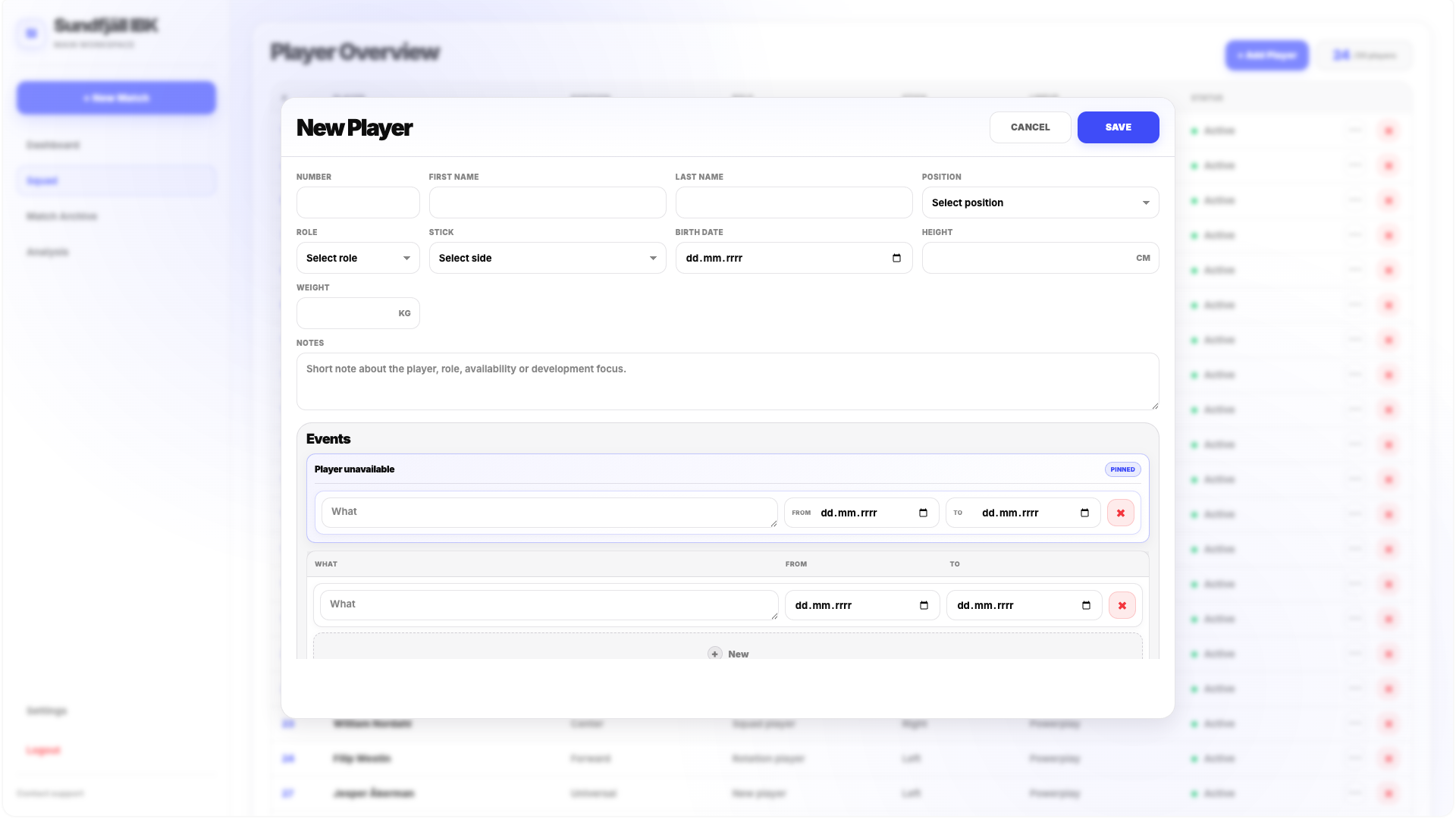
You can enter the following information:
- Player number.
- First name.
- Last name.
- Position.
- Role.
- Stick side — Left or Right.
- Date of birth.
- Height in centimetres.
- Weight in kilograms.
You can also add a short note to the player.
Not every additional physical detail has to be used, but completing the player profile gives you a more complete squad database inside the application.
Player Events and Availability
FloorballStats allows you to record additional events related to individual players.
A player event can contain a description and a specific time period defined by a start and end date.
This can be used to maintain relevant player information over time instead of keeping it outside the platform.
A special event called Player Unavailable is available for situations in which a player cannot currently participate.
For example, if a player is injured, you can create a Player Unavailable event, describe the reason and select the period during which the player is unavailable.
The player's availability in Player Overview will then reflect this information.
Use Player Unavailable for temporary absences with a known time period. This makes the player's current status immediately visible when preparing the squad.
Other player events can be kept as part of the player's history or removed when they are no longer needed.
Editing and Removing Players
Existing players can be edited directly from Player Overview.
Use the three-dot menu on a player's row to edit their information.
A player can be removed from the squad using the red X button.
Sorting Player Overview
The Player Overview table can be sorted by its individual columns.
Click a column heading to sort the table according to that field. Clicking the same heading again changes the direction of the sorting.
This can be useful when organizing larger squads by number, name, position or another available field.
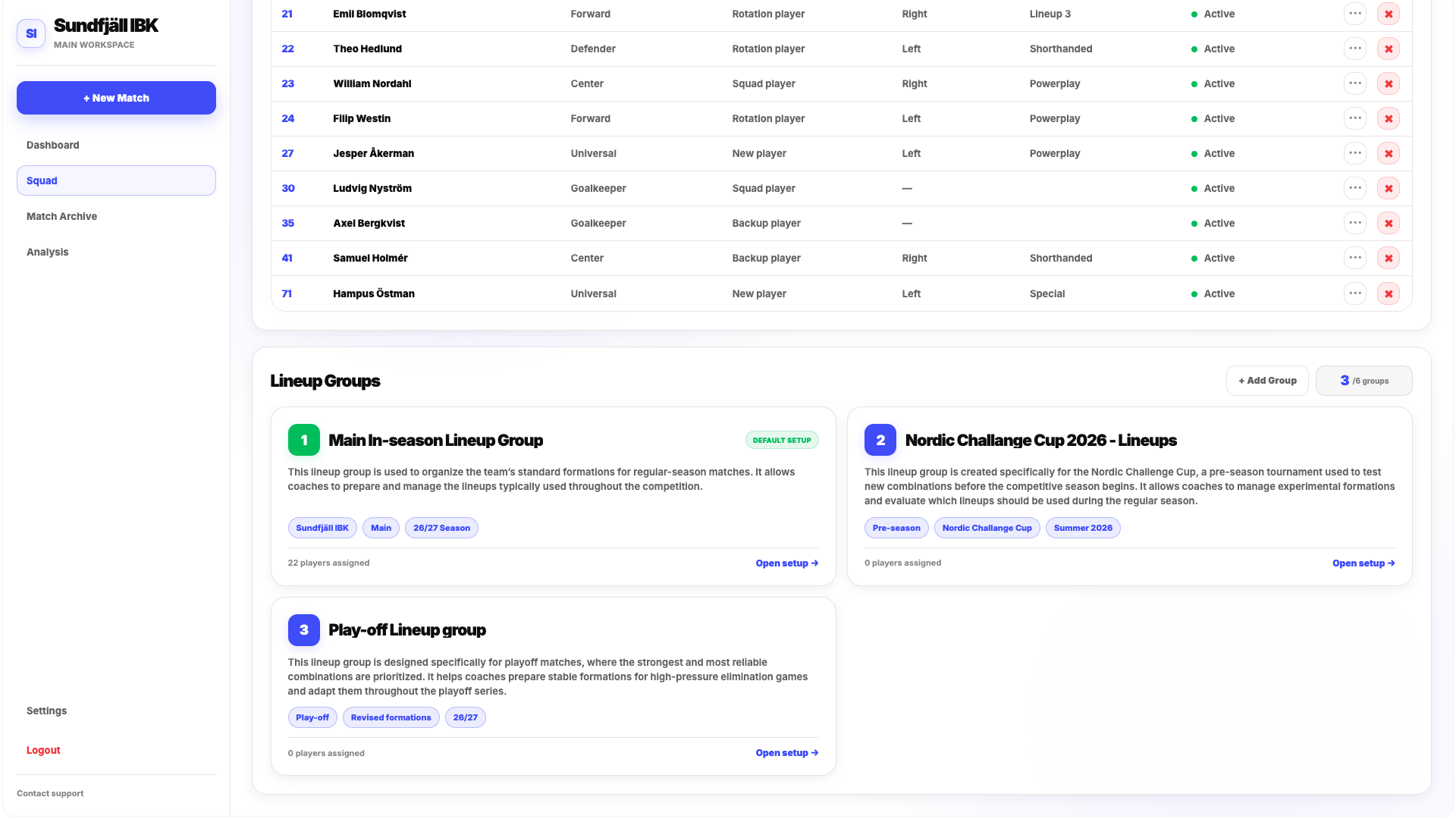
Lineup Groups
Lineup Groups allow you to organize players into match formations.
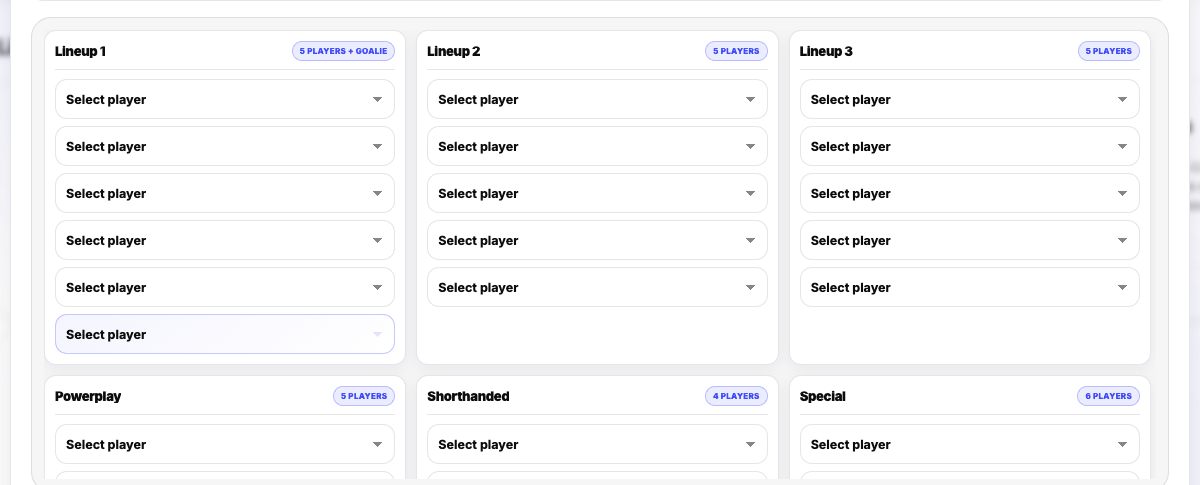
Every Lineup Group contains six different lineups:
- Lineup 1
- Lineup 2
- Lineup 3
- Powerplay
- Short-Handed
- Special
The first three are your standard formations. Powerplay and Short-Handed are designed for special game states, while Special gives you an additional flexible formation.
Players are assigned to individual lineups using the available player selection controls.
A player must already exist in Player Overview before they can be added to a lineup.
Creating a Lineup Group
To create a new group, click + Add Group.
The Create Lineup Group popup opens.
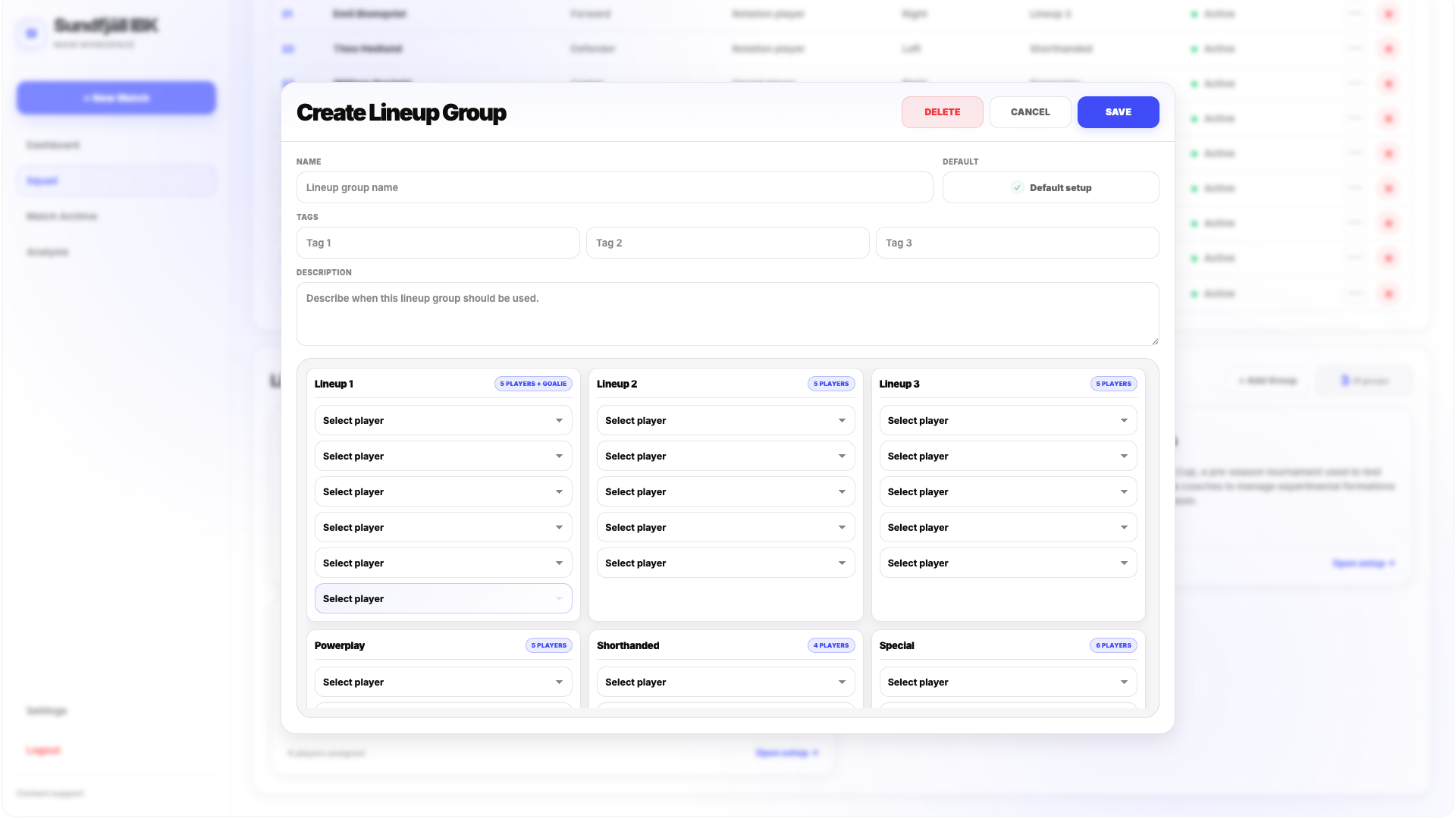
Name
Give the Lineup Group a name that makes its purpose easy to identify.
You may, for example, use different groups for different squad setups or periods of the season.
Default Setup
A Lineup Group can be marked as your Default Setup.
The Default Lineup Group is important because FloorballStats uses it when determining the primary lineup of individual players and when displaying selected player and lineup analytical information.
The current Default Setup is visually marked in the application with green highlighting and a Default Setup label.
Your Default Lineup Group affects how lineup information is interpreted in other parts of FloorballStats. Make sure the correct group is selected when you want to analyse your current formations.
Tags and Description
A Lineup Group can contain up to three tags.
You can also add a short description to provide additional context about the purpose of the setup.
Assigning Players
Players from your squad can then be assigned to each of the six formations.
Players may appear in more than one lineup where needed.
Lineup 1 must contain at least one goalkeeper.
To edit an existing Lineup Group, click the group to open the Edit Lineup Group popup.