General
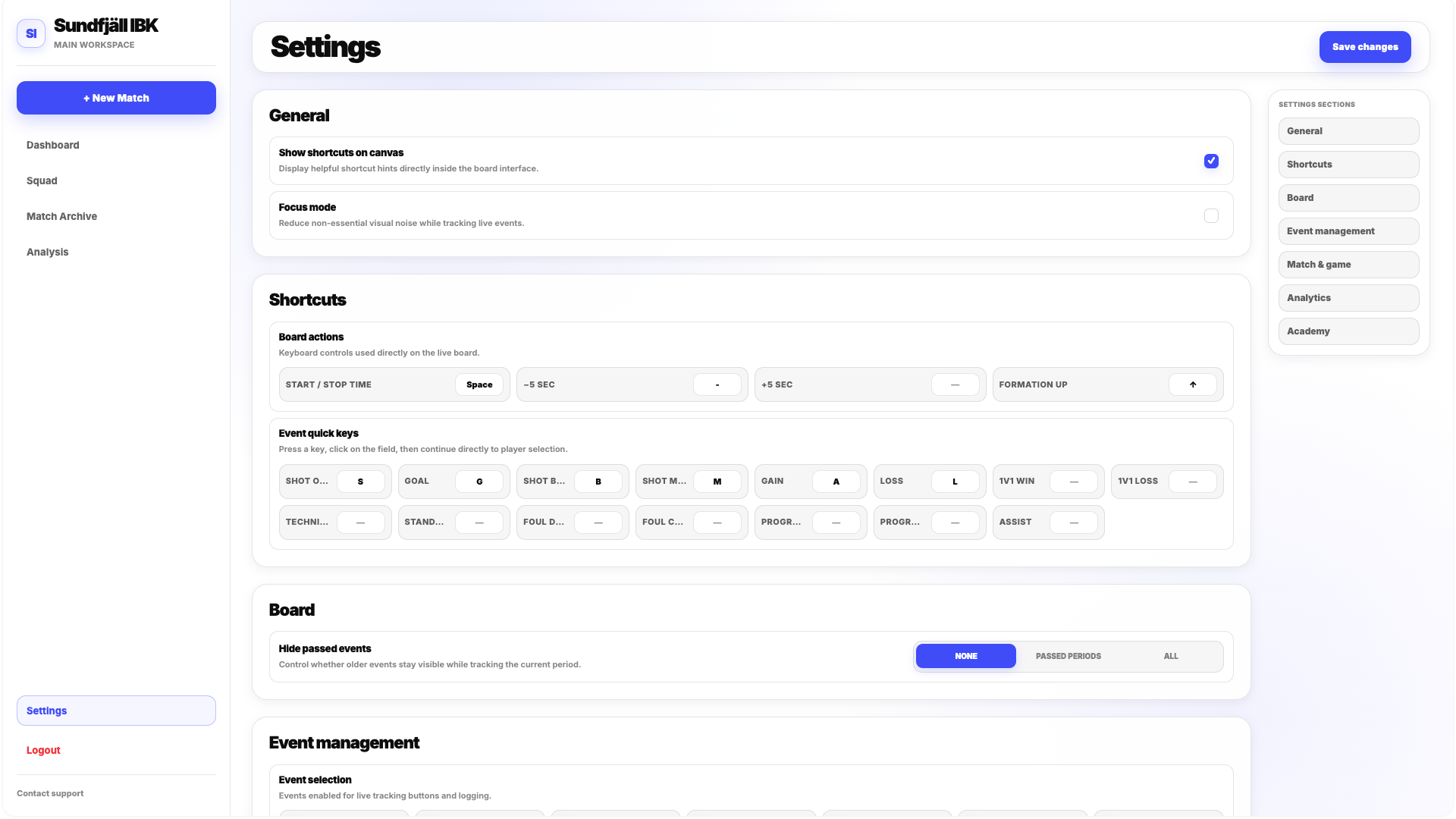
Show Shortcuts on Canvas
Show Shortcuts on Canvas controls whether Keyboard Shortcuts are displayed directly on the Match Board.
If you actively use shortcuts during tracking, keeping them visible can make the controls easier to remember.
If you already know them or prefer a cleaner Board, the hints can be hidden.
Focus Mode
FloorballStats uses informational popups to confirm actions such as successful saves or other application events.
During live match tracking, a high number of these messages can become distracting.
Focus Mode reduces this visual noise by hiding most non-critical informational popups while keeping messages that are important for using the application correctly.
Focus Mode can be useful during live matches when tracking speed and concentration are more important than seeing every standard confirmation message.
Shortcuts
The Shortcuts section allows you to configure Keyboard Shortcuts for Match Board actions.
Shortcuts can reduce the amount of mouse or touch interaction required during live tracking.
They can be configured for actions such as:
- Starting and stopping the clock
- Adding time
- Subtracting time
- Switching lineups
Event Quick Keys
You can also create Quick Keys for individual events.
Normally, recording an event starts by clicking the relevant position on the field and then selecting an Event Type.
With a Quick Key, you can activate the Event Type first using the keyboard.
You then click the relevant position on the field and select the player.
This removes one step from the standard workflow and can make live tracking significantly faster.
If you regularly track matches with a keyboard available, Event Quick Keys can be especially useful for the events you record most frequently.
Board
Hide Past Events
Hide Past Events controls which previously recorded Event Markers remain visible on the Match Board.
There are three modes.
None
All recorded events remain visible.
This gives you the maximum amount of spatial context but can make the field increasingly crowded as the match continues.
Past Periods
Events from completed periods are hidden.
Events from the current period remain visible.
This gives you current-period context without carrying every marker from previous periods onto the field.
All
All previously recorded event markers are hidden.
The Board therefore remains visually clean for recording new actions.
This setting affects only the visibility of event markers, not the recorded events themselves.
Event Management
Event Management lets you decide which Event Types are available during Match Tracking.
If your team does not use a particular event, you can disable it.
This allows you to simplify the Event popup and keep only the actions relevant to your tracking workflow.
Event Marker Visibility
Event availability and Event Marker visibility can be controlled separately.
This means an event can remain active and recordable while its marker is hidden on the field.
For example, you could keep Hide Past Events = None but disable the visual marker for a specific Event Type you do not need to see spatially.
Confirm Event Deletion
Confirm Event Deletion adds an additional safety step when deleting a recorded event.
When enabled, deleting an event requires an extra confirmation.
When disabled, the event is deleted directly after using the delete action.
If several people track matches or if accidental deletion is a concern, keeping Confirm Event Deletion enabled can reduce the risk of removing data unintentionally.
Match & Game
Match Length
Match Length controls the format and duration of the match.
The available formats include the standard 3 × 20 minutes as well as shorter formats such as 2 × 12 minutes.
Choose the format that matches the competition or game you are tracking.
Enable Overtime
Enable Overtime determines whether Overtime is available in the match controls.
Enable Shootout
Enable Shootout determines whether the Shootout period is available.
Overtime and Shootout are controlled independently.
Lock Period After End
When Lock Period After End is enabled, moving to the next period permanently closes the previous period.
You cannot switch back to it afterwards.
When the setting is disabled, you can move between periods freely.
This feature is mainly designed to reduce accidental period changes and simplify live tracking.
Switch Sides After Period
Switch Sides After Period changes the visual orientation of the teams after a period to reflect the real-world change of sides on the floor.
The underlying statistics remain normalized. The feature is primarily a visual aid that helps the Board match what the person tracking the game currently sees.
When Switch Sides After Period is enabled, Hide Past Events is automatically set to Past Periods and cannot be changed while this setup is active.
Analytics Settings
Settings also allows you to choose how xG is handled in the application.
Two options are available:
- Organic xG
- Synthetic xG
Organic xG
Organic xG uses the FloorballStats xG model directly.
Synthetic xG
Synthetic xG uses the FloorballStats xG model together with an adjustable multiplier.
Synthetic xG Multiplier
The Synthetic xG Multiplier allows you to increase or decrease the resulting xG values relative to the underlying FloorballStats model.
This gives teams an additional configurable layer if they prefer a modified xG output.
A separate xG guide can explain the FloorballStats xG model, interpretation of xG values and the difference between Organic and Synthetic xG in more detail.