Searching for Matches
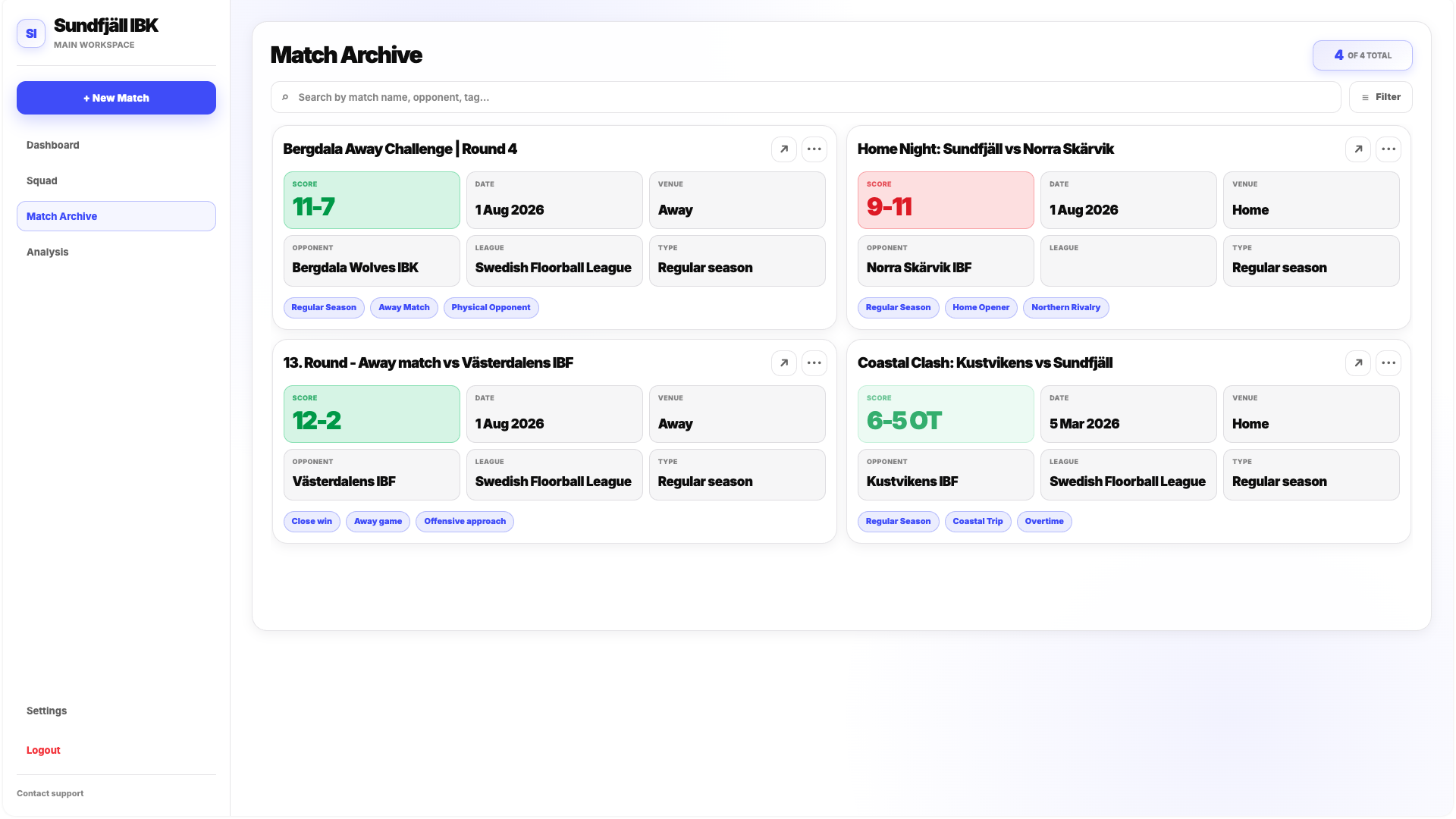
The Search Bar allows you to quickly find a specific match.
You can search primarily using information such as:
- Match Name
- Opponent
- Tags
This becomes increasingly useful as your archive grows across a season.
Filtering and Sorting Matches
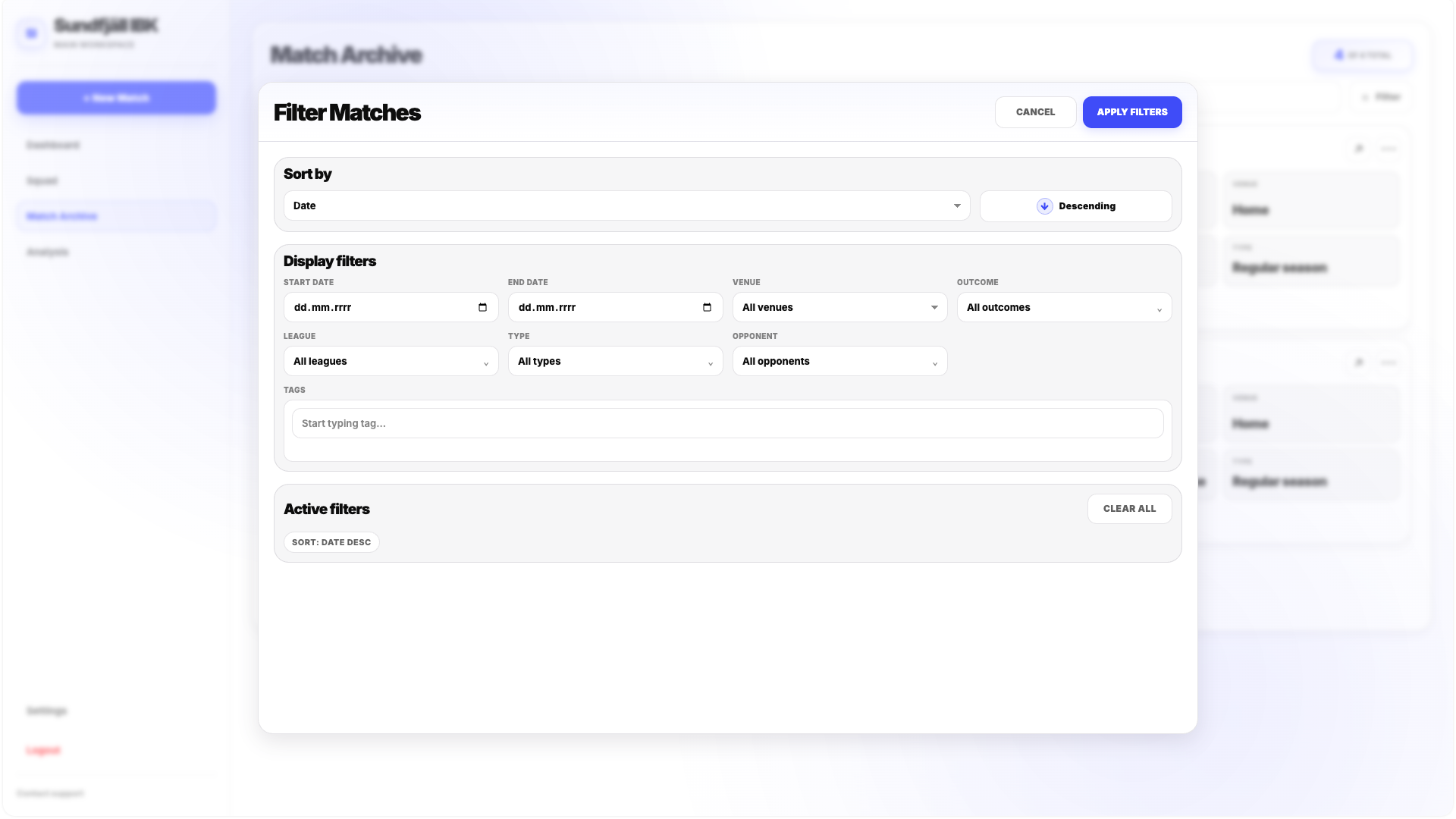
Click Filter to open the Filter Matches popup.
Sort By
Matches can be sorted by different criteria, including:
- Date
- Number of Goals
- Outcome
- Goal Difference
- Goals Scored
- Goals Against
- Opponent
- League
This changes the order in which matching games are displayed.
Display Filters
Display Filters determine which matches are included in the archive view.
You can filter by:
- Start Date
- End Date
- Venue — Home or Away
- Outcome
- League
- Match Type
- Opponent
- Tags
Outcome filtering can distinguish between results such as Win, Loss, Win OT and Loss OT.
Match Type can be used to separate different types of games, such as regular competition matches and friendlies.
Match Cards
Every match is represented by a card containing the main information about the game.
A Match Card can display:
- Match Name
- Score
- Date
- Venue
- Opponent
- League
- Type
- Up to three Tags
Each card also provides actions for opening or managing the match.
The arrow button opens Match Detail.
The three-dot menu gives you access to additional options.
From there, you can open the Board to return to Match Tracking or open the match settings.
Editing a Match
Opening the match settings gives you access to the Edit Match popup.
Here, you can update match information such as:
- Match Name
- Opponent
- Date
- Venue
- Match Type
- Tags
- League
You can also manage Opposition formations and assign Opposition players to the relevant lineups.
This is useful when the Opposition setup changes or when you need to complete their lineup information before or during the match.