Main Navigation
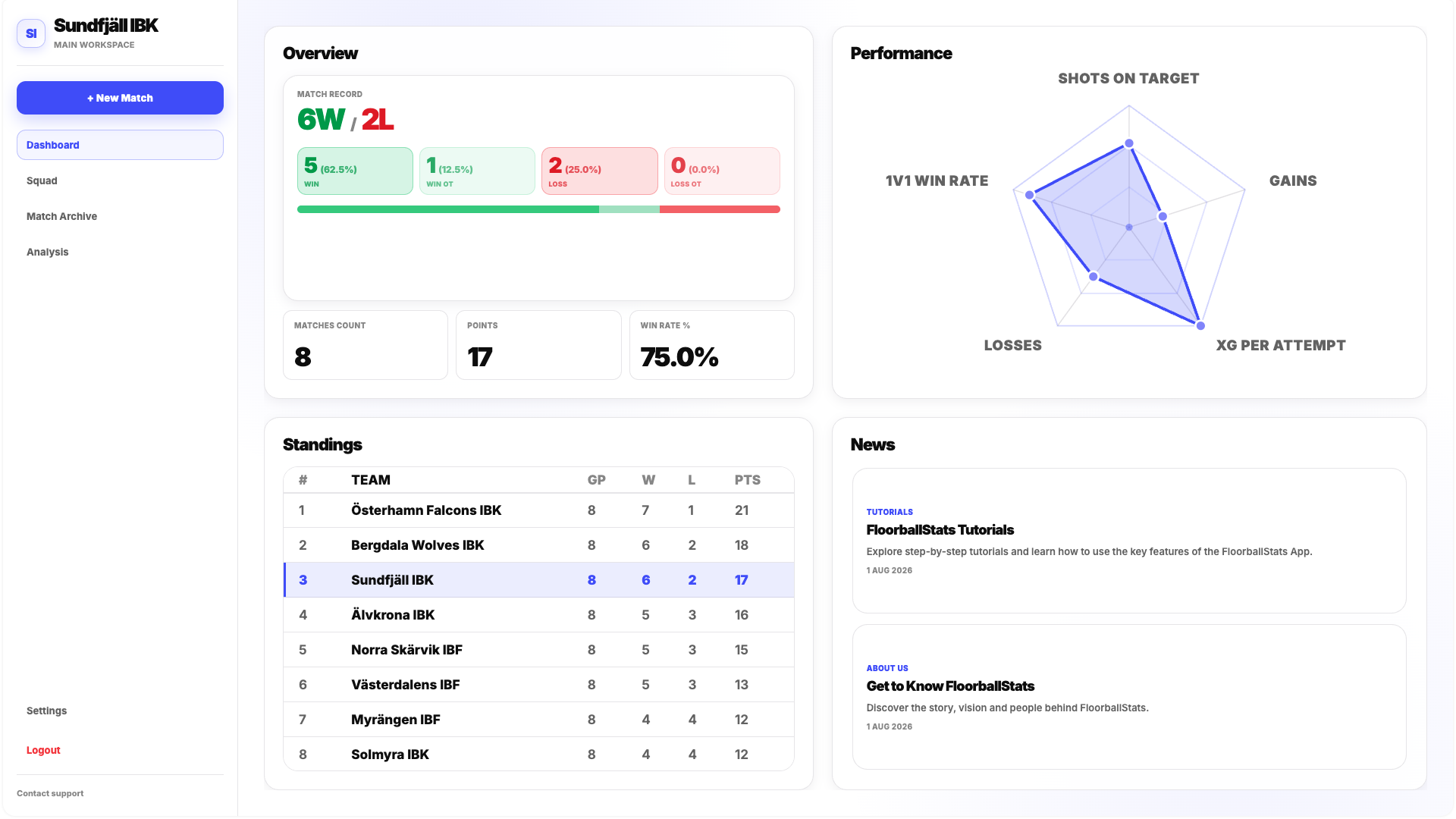
The navigation panel on the left side of the application gives you access to the main parts of FloorballStats.
From here, you can open pages such as:
- Squad
- Match Archive
- Analytics
- Settings
You can also contact support, log out of the application or create a new match.
The + New Match button is available directly from the main navigation and is the primary starting point when you want to prepare a new match for tracking.
Team Overview
The first Dashboard section gives you a quick summary of your team's match results.
It includes information such as the number of wins and losses, the points collected and your current Win Rate.
Win Rate represents the percentage of tracked matches that your team has won.
This section is designed as a quick summary rather than a detailed analytical view. More detailed team and player performance information can be found later in Analytics.
Performance
The Performance panel connects the Dashboard with the Goal Progress functionality in Analytics.
It shows how your team is currently performing against the five performance goals you have configured.
These goals can represent different statistics or performance metrics depending on what you want your team to focus on.
For example, you could choose to track progress in a shooting metric, possession-related action or another available performance indicator.
The Performance panel itself is used mainly for monitoring. To change the metrics, reference period or target values, open Analytics → Goal Progress.
Standings
The Standings panel shows your team's position in its domestic competition.
The table is updated once per week and reflects the current official competition standings.
This allows you to keep basic competition context visible directly from the Dashboard without leaving the platform.
News
The News panel contains two current FloorballStats news items.
These can be used for product updates, upcoming features, important information or links to useful resources such as tutorials.
Clicking a News item takes you to the relevant page or resource.